
Microsoft is ending support for Windows 10 on October 14, 2025 (more info). Basically forcing everyone to install or upgrade to Windows 11. No matter how much you love Windows 10, and hate UI changes, we strongly recommend biting the bullet and updating to Windows 11. The Windows security updates are very important long term, even if they are annoying!
Here is our list of recommended changes to make to Windows 11 to give it more of a familiar feeling for those who are used to Windows 10. We will not recommend any third-party apps or new programs for you to install. Some of these may be great but we don’t think the risk of them causing problems or a future Windows update making them incompatible is worth the hassle.
We also provide a guide for removing Windows 11 bloatware and Microsoft telemetry settings that might be sending your personal data to Microsoft.
Table of contents:
- Move the Windows 11 start menu to the left hand side.
- Get Windows 10 right-click context menus back.
- Remove Windows 11 bloatware and Microsoft telemetry features.
- Turn off Windows 11 Search function’s Online Results.
- Change how the Windows 11 Start Menu looks.
- Windows 11 Taskbar Quick Settings menu customization.
- Improve Windows startup speed.
- Remove Gallery from Windows 11 File Explorer left hand menu.
- Remove Microsoft Windows Phone Link app forever.
1) Move the Windows 11 start menu to the left hand side:
First things first, why is the start menu in the middle of the taskbar?? Luckily this is easy to fix:
- Right click on the task bar and select “Taskbar Settings“
- From the new popup settings menu, expand the “Taskbar Behaviors” section, it should be the 4th section down.
- Use “Taskbar alignment” to choose your preferred location.

2) Get Windows 10 right-click context menus back:
Don’t like the Windows 11 right click menu? Do you want the “show more options” to be the default right-click view? So do we, let’s fix it.
- In the taskbar Search bar type “cmd” and then right click “Command Prompt” and select “Run as administrator“
- In the command prompt window type (or copy and paste):
reg.exe add "HKCU\Software\Classes\CLSID\{86ca1aa0-34aa-4e8b-a509-50c905bae2a2}\InprocServer32" /f /ve
- Hit enter and after it finishes you can close the command prompt window
- For the change to take effect we need to restart Windows Explorer. You can do this by either restarting your computer or by restarting Explorer from Task Manager.
- To restart Windows Explorer from the Task Manager, right click the task bar and open Task Manager. From the Processes tab in Task Manager, you can search for “Windows Explorer” at the top of the window. When you see the Windows Explorer process show up you can right-click on it and select “Restart” (your screen may flicker for a few seconds)
- Now you can test your right click on the Windows Desktop again, it should look like the right-click menu from Windows 10!
- If you want to know what the Command Prompt code does:
- We are changing this Windows Registry Key “HKCU\Software\Classes\CLSID{86ca1aa0-34aa-4e8b-a509-50c905bae2a2}\InprocServer32” to a default value of “0” with the “/ve” command (as in, turning it off)
- The “/f” command forces it to overwrite what is already there.
- Originally, this Key had the value “C:\Windows\System32\Windows.UI.FileExplorer.dll” but since we’ve removed that link with “0” Windows falls back on the old style right-click menu.
3) Remove Windows 11 bloatware and Microsoft telemetry features
Windows 11 installs a bunch of programs and settings you probably do not want. You’re probably not using Microsoft Teams on your personal computer so why leave it taking up space and running updates in the background? Microsoft also quietly adds features that could track how you use your PC and send your personal data to Microsoft, but we can turn these off.
- From the Search section on the Taskbar search “installed apps” and open that up
- From the “Search apps” bar near the top, type in any apps you want to uninstall. To uninstall just click the three dots on the right and select Uninstall. Here are some suggestions to get you started:
- CoPilot– we removed Microsoft CoPilot because there’s already too much AI being pushed in our faces. You can keep it if you prefer.
- Cortana – this was replaced by CoPilot in 2023 but your computer may still have an old version installed
- Teams – if you don’t use teams on this computer then uninstall it
- OneDrive – if you don’t use it then it can be pretty annoying
- Microsoft Outlook – if you use a different email provider then get rid of Outlook
- Feedback Hub – if you don’t want to send feedback to Microsoft
- Windows Maps – have you ever used the maps app in Windows?
- Try searching Microsoft, Windows, Xbox, etc., and see if there are any other programs you know you don’t want
- Now click the Windows start menu button on your Taskbar. There are probably a bunch of apps listed in the Windows Start Menu that you don’t want. Note, some of these are not actually installed on your computer but Microsoft has put them here as a quick install “feature”… We’ll let you decide if you think this is a good feature or not… To remove this clutter just right click on anything you don’t want and hit “Uninstall” if you want to get rid of it for good. Or, you can choose “Unpin from Start” to just get it off of the default Start Menu view.
- Note you can rearrange these icons by dragging and dropping. Drag and drop a Windows Start Menu app on top of another to create a start menu app folder. You can open the app folder to give it a name. See the “Office” app folder in the image below.

Turn off Windows 11 telemetry settings to improve your privacy.
- From the Start Menu or the search bar open the Settings window and then go to Privacy & security
- This has a bunch of sub-menus with various settings. For our purpose of how to stop Microsoft tracking how we use Windows 11 and sending personal data to their servers, we have turned off the following settings:
- Find my device – this is up to you, if you are on a tablet or laptop and signed in with a Microsoft account you probably want to keep this turned on
- General – under this menu we turned everything off except “show me notifications in the Settings app”
- Speech – we turned it off
- Inking & typing personalization – we left this on but you may want to turn it off
- Diagnostics & feedback – we turned everything in this sub-menu off, you can even delete previous diagnostic data with the bottom option.
- Search permissions – we turned everything off except under History we left “Search history on this device” set to On
- Below this you can see the App permissions section. We won’t go into this but you might want to check if any apps have permissions you don’t want.

4) Turn off Windows 11 Search function’s Online Results
Do you want to stop Windows 11 from showing results from the web when using the built in search bar? Here’s how to force Windows to only show results from your local computer in search results! Afterall, if we wanted results from the internet then we would use an internet search engine!
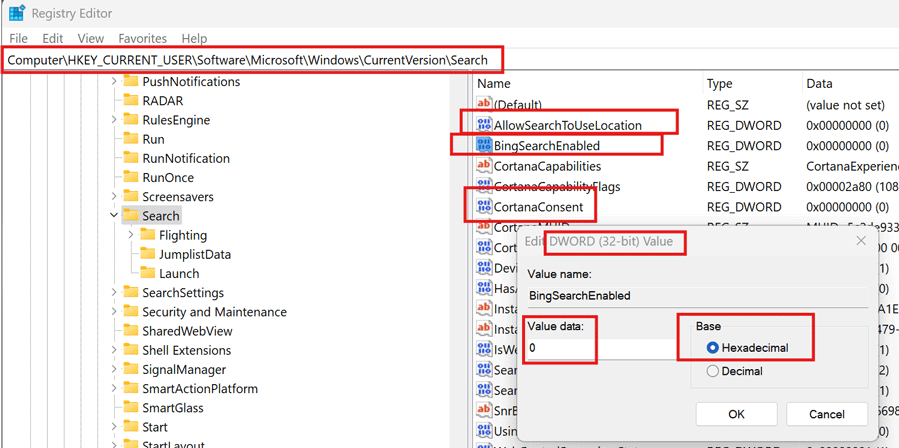
- Open the Registry Editor by typing “regedit” into the search bar and opening it
- Navigate to this folder, or just copy and past this location into the top bar
- HKEY_CURRENT_USER\Software\Microsoft\Windows\CurrentVersion\Search
- Look for a key named “BingSearchEnabled” if it doesn’t exist you can add it by right-clicking the empty space, going to new, then select “DWORD (32-Bit) Value“
- Right click on “BingSearchEnabled” and select Modify from this new window. Enter the “Value Data:” as the number 0 and make sure Hexadecimal is selected under Base. Hit ok to save it. (this turns off Bing Search)
- Repeat steps 3 and 4 for these other two keys
- AllowSearchToUseLocation
- CortanaConsent
- For these to start working you need to restart your computer.
5) Change how the Windows 11 Start Menu looks
You can’t get the Start Menu to look much like Windows 10 without using a 3rd party app unfortunately. As we mentioned at the top of the post we don’t want to use any extra programs so we will just do some minor tweaks to make the Start Menu a bit more user friendly.
- From the Start Menu or the search bar open the Settings window and then go to Personalization and then to the Start sub-menu
- From here you can choose the Layout to have more pins or more recommendations. We went with more pins because it means we’re in control not Windows
- We turned off “Show Recommended files in Start, recent files in File Explorer, and items in Jump Lists” but that’s a personal choice.
- Under the Folders sub-menu we turned everything off, but again that’s up to you
- You can rearrange the apps in the Start Menu by dragging and dropping. Drag and drop a Windows Start Menu app on top of another to create a start menu app folder. You can open the app folder to give it a name. See the screenshot posted previously.

6) Windows 11 Taskbar Quick Settings menu customization
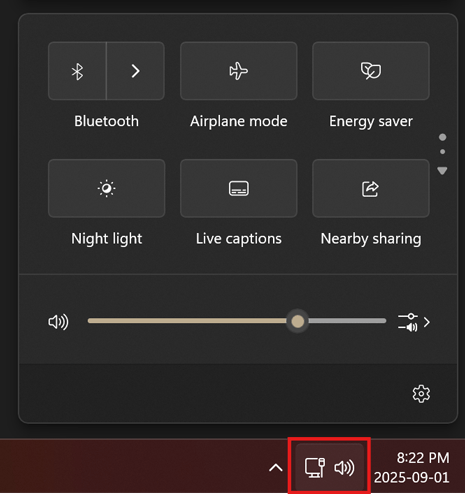
The Quick Settings menu is accessed by clicking the sound and display icons on the right side of the Windows 11 taskbar. It allows you to do things like quickly toggle Bluetooth on and off, as well as things like airplane mode, night light, etc. This menu was way better, more useful, and more customizable in Windows 10. I have no idea what Microsoft designers are thinking with the terrible changes to this, once useful, menu.
Microsoft has removed any ability to customize what quick setting toggles are in this list, so we’re stuck with what ever they decide is useful… what a terrible design! All we can do is drag and drop the icons around to customize the order. You can scroll up and down with your mouse also, instead of using the tiny scroll buttons on the edge.
There is a Windows 11 keyboard shortcut to open the Sound Output selection. Use “Windows key + ctrl + v” to bring that menu up. It’s worse than the Windows 10 option where you could just right click on the speaker icon from the taskbar but that’s gone too.
To hide the language bar on the taskbar in Windows 11: go to Settings > Time & Language > Typing > Advanced Keyboard Settings > then select “Use the desktop language bar when it’s available” > then below this open the “Language bar options” menu and under “Language Bar” select “Hidden“
7) Improve Windows startup speed
Nobody likes waiting for the computer to start up after turning it on. Some programs decide they are so important they will start running every time your computer turns on but this slows down your startup speed. Let’s turn some of them off.
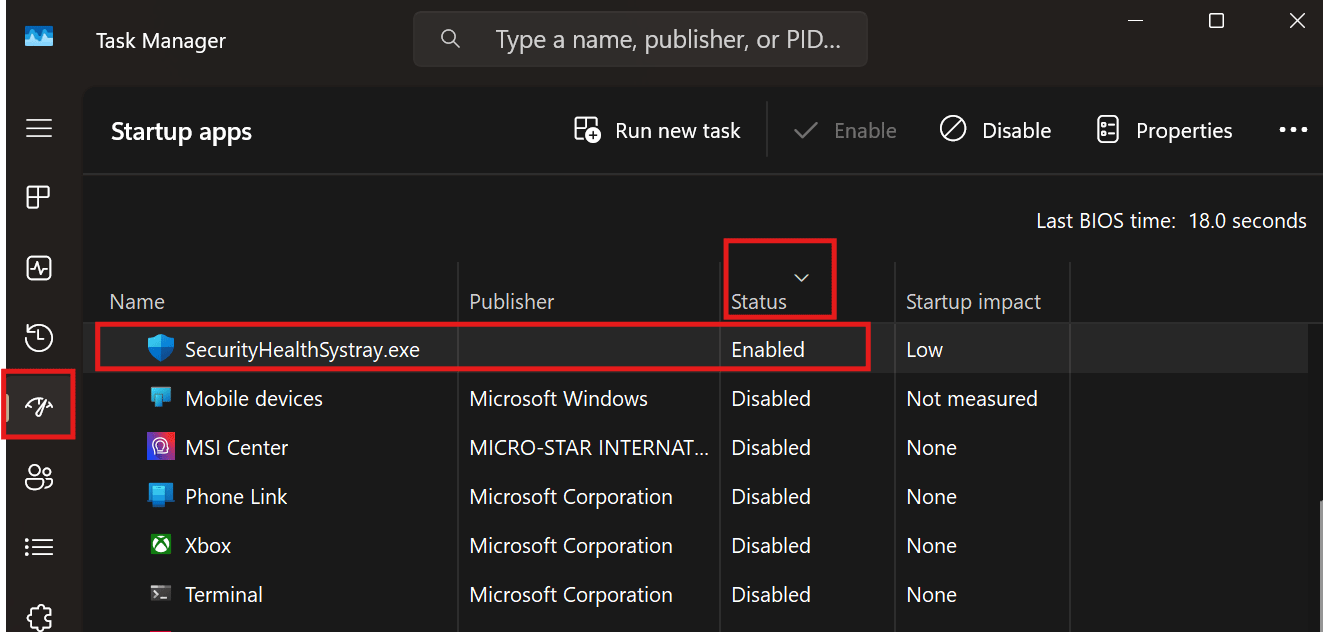
- Right click on the taskbar and open Task Manager
- From the left hand tabs click on Startup apps the icon looks like the speedometer in a car
- Click on the Status column along the top to sort by what is Enabled or Disabled from automatically starting when you turn your computer on.
- Any program you don’t want to starting automatically just right-click and select Disable
- It’s up to you what you want running, but for ourselves we disabled everything except “SecurityHealthSystray.exe” which is a Windows Security component so it’s best to leave that running.
- If you see any driver like apps in the list you may want to leave those enabled as well. Things like “realtek audio services” or Logitech mouse and keyboard programs are probably helpful.
8) Remove Gallery from Windows 11 File Explorer left hand menu
Microsoft added a “Gallery” shortcut to the left hand menu of File Explorer and there’s no way to unpin this. Why? Nobody knows.
- We can once again, run Command Prompt as Administrator, by using the taskbar Search bar and typing “cmd” and then right click “Command Prompt” and select “Run as administrator“
- Then type or copy and paste this:
reg add HKEY_CURRENT_USER\Software\Classes\CLSID{e88865ea-0e1c-4e20-9aa6-edcd0212c87c} /f /v "System.IsPinnedToNameSpaceTree" /t REG_DWORD /d 0x00000000
- Hit enter and it should run, then you can close Command Prompt
- We then need to restart File Explorer by either restarting the computer or restarting just File Explorer from the Task Manager like before, see above.
- Depending on which Windows Update your computer is on that may not work and you may have better luck with this:
reg addHKEY_LOCAL_MACHINE\SOFTWARE\Microsoft\Windows\CurrentVersion\Explorer\Desktop\NameSpace\{e88865ea-0e1c-4e20-9aa6-edcd0212c87c}/f /v "HiddenByDefault" /t REG_DWORD /d 0x00000001
9) Remove Microsoft Windows Phone Link app forever
For some reason Windows wont let you uninstall “Phone Link” in any easy way. If you never plan to link your phone to your Windows PC then you can remove this with the instructions below. Phone Link loves to run in the background even when you’ve never had a phone linked to your computer, I have no idea what it’s doing but I would rather it went away.
- To remove Microsoft Phone Link, open Windows PowerShell as administrator
- paste in the following code
Get-AppxPackage Microsoft.YourPhone -AllUsers | Remove-AppxPackage
That’s all, for now!
We will keep updating this page with new guides, tips and tricks.
Please drop a comment below if you have a better way to do one of these things or you know a cool trick we should add to this list of Windows 11 modifications!
Good luck!