
If you’re using DarkReader extension to change websites to a dark theme mode, then you may have noticed recently that the search bar in Gmail and the new message bubbles in Gmail’s Meet / Chat feature are basically unreadable.
Here’s a way to change these colors back to whatever you like.
How to fix the new message chat bubble color in Gmail Chat:
Click on the DarkReader extension, then click “More” beside the “Filter” and “Site list” tabs near the top. Under More, click “All settings” this will open up a new tab with extra settings. From here, click “Advanced” on the left side and then “Dev tools“
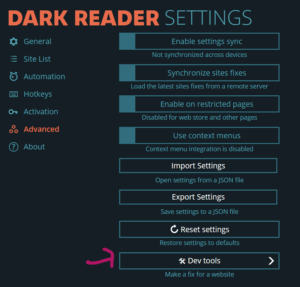
Dev Tools will open a new window.
Along the top you can choose “Per Site Editor” and then search for chat.google.com if nothing shows up then hit the “Create new fix” button. For some reason even though we’re fixing the colors inside Gmail’s meet feature and the live url will start with mail.google.com we have to target chat.google.com because it’s pulling style details from there.
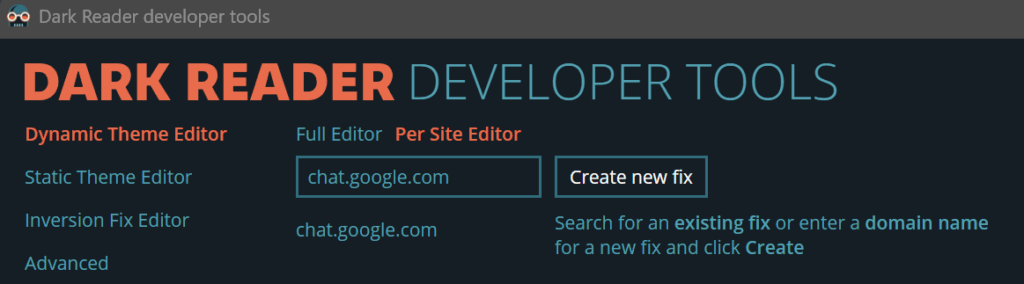
If it doesn’t exist then this is the code you need to put into the new fix page:
chat.google.com

CSS
.nF6pT.yqoUIf.Pxe3Yd:not(.xOWoLe) .rogmqd {
    background-color: #1a3647 !important;
}
If you already have an entry for chat.google.com then just add the code under CSS to your existing code.
You can change the color from #1a3647 to anything you like. Hitting the Apply button should live update Gmail chat but you might have to refresh the page if it doesn’t work. Go to a chat in Gmail and send a new message – finally, once again you can read what you sent!
To fix the Gmail search bar colors with Dark Reader:
Repeat the same steps above to get to Dark Reader developer tools and under Per Site Editor search for mail.google.com this probably does exist already so just click on that and we’ll add some extra CSS to the bottom of the CSS section
.gb_0c .gb_Dd {
    background: rgb(20 49 100 / 78%) !important;
}
.gb_0c .gb_ye {
    color: #000 !important;
}
form.aJf svg {
    color: rgb(0 0 0 / 87%) !important;
}
#aso_search_form_anchor > button.gb_Le > svg,
#aso_search_form_anchor > button.gb_Je.IQO5Cf.gb_ff > svg {
    color: #ffffffba !important;
}
If it doesn’t exist yet you can create a new fix, like before, and just include this code before the CSS above
mail.google.com

CSS
The .gb_0c .gb_Dd will target the search bar background color.
The .gb_0c .gb_ye is targeting the text color of things you type in.
The form.aJf svg is targeting the magnifying glass search icon color on the left of the search bar.
This selector #aso_search_form_anchor > button.gb_Le > svg, #aso_search_form_anchor > button.gb_Je.IQO5Cf.gb_ff > svg is targeting the search options button icon and the “x” icon to close your recent search, this “x” only appears after you search.
Change all the colors as you wish.
That’s all for now. We hope this fix will help you out.
P.S. The next time Google updates it’s code, or DarkReader has an update, there is a chance that this fix might stop working.